
Set up volunteer roles for your team
Define the jobs your team needs filled once, and they appear on every game and practice for parents to claim.
Jump to
Create a role
-
1
Open your team's events
Pick your team, then tap Volunteers in the top right of the events page.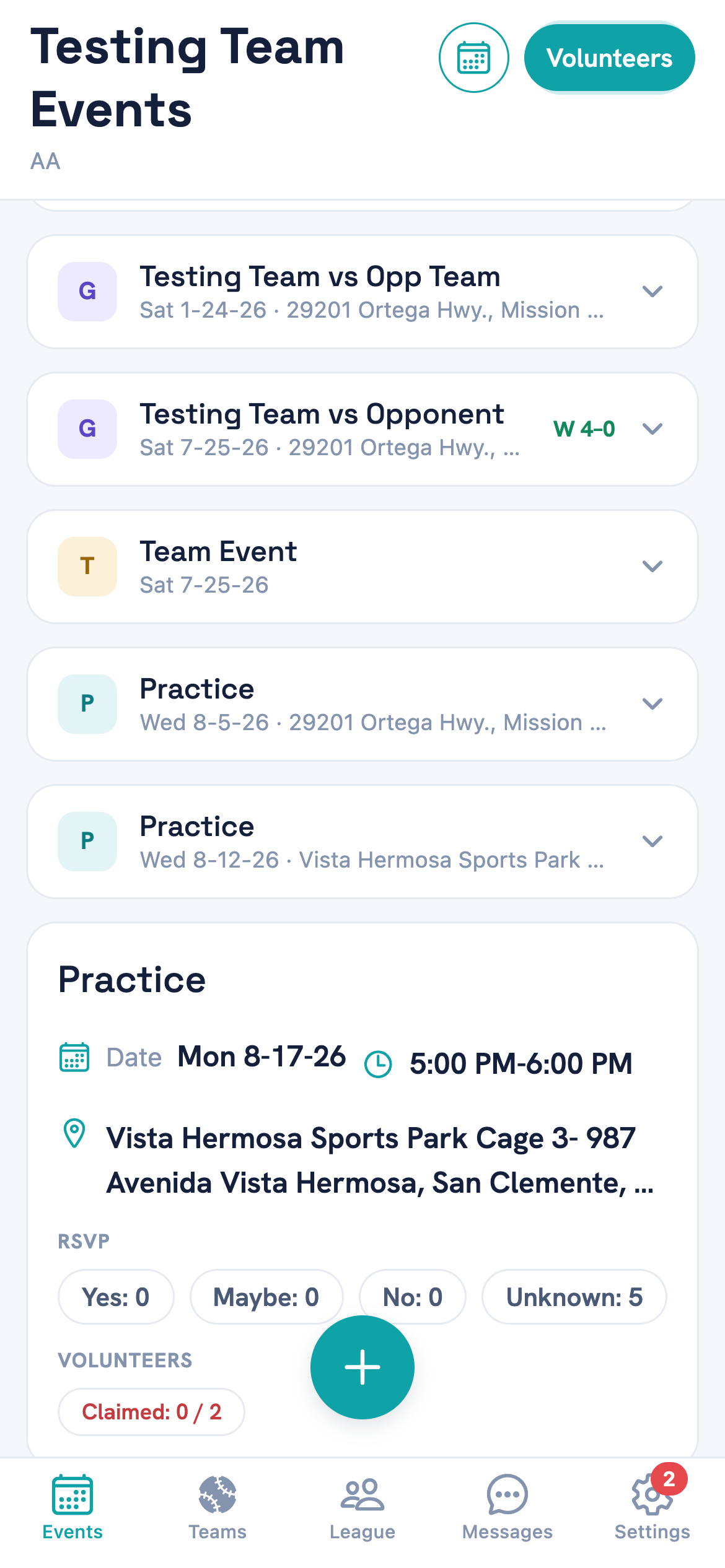
Volunteers sits at the top right, next to the calendar icon — not in the bottom tab bar. -
2
Tap Manage Roles
That's where the standing roles live.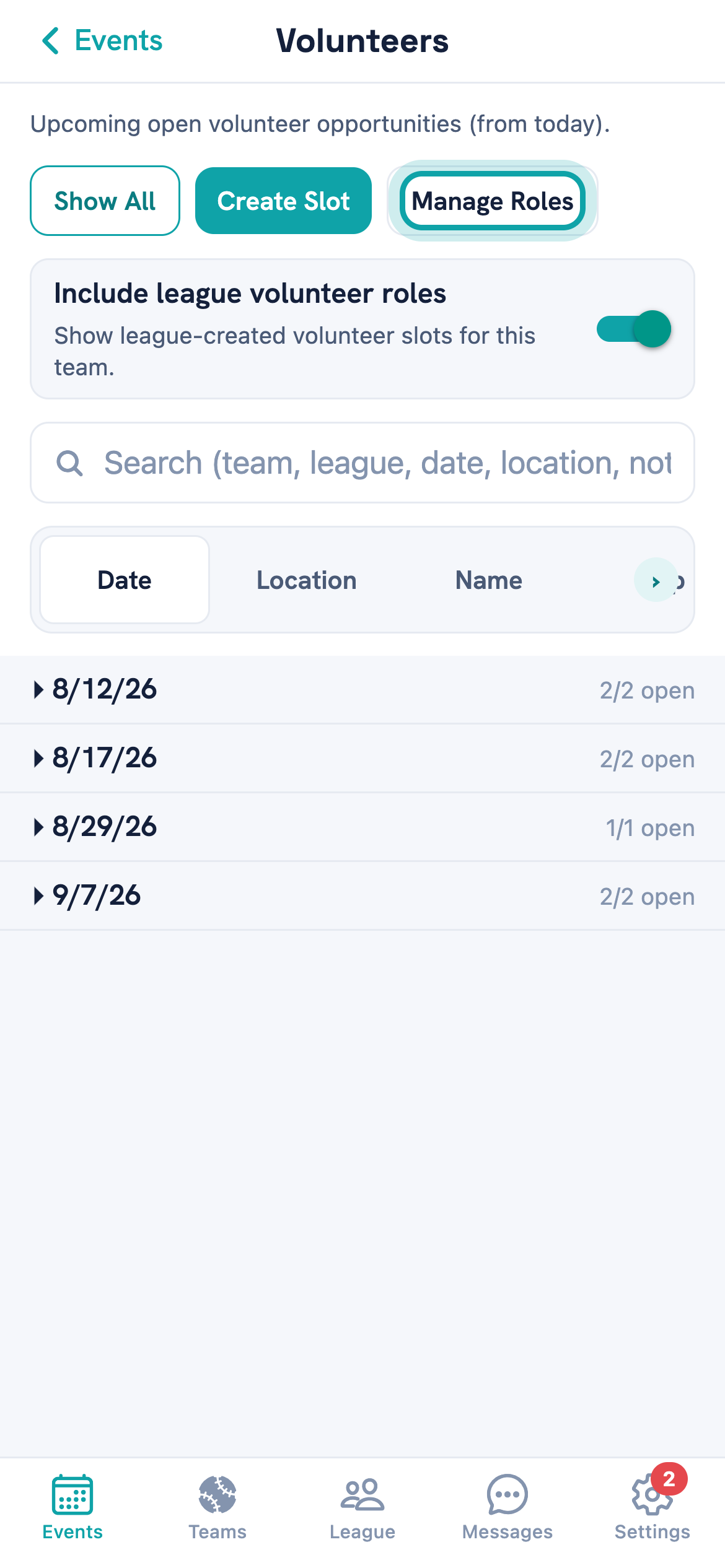
Create Slot adds a one-off job to a single event. Manage Roles is the one that repeats. -
3
Name the role
Use the name a parent would recognise on a signup sheet — Snack Shack, Scorekeeper, Field Setup. Add a description if the job needs explaining.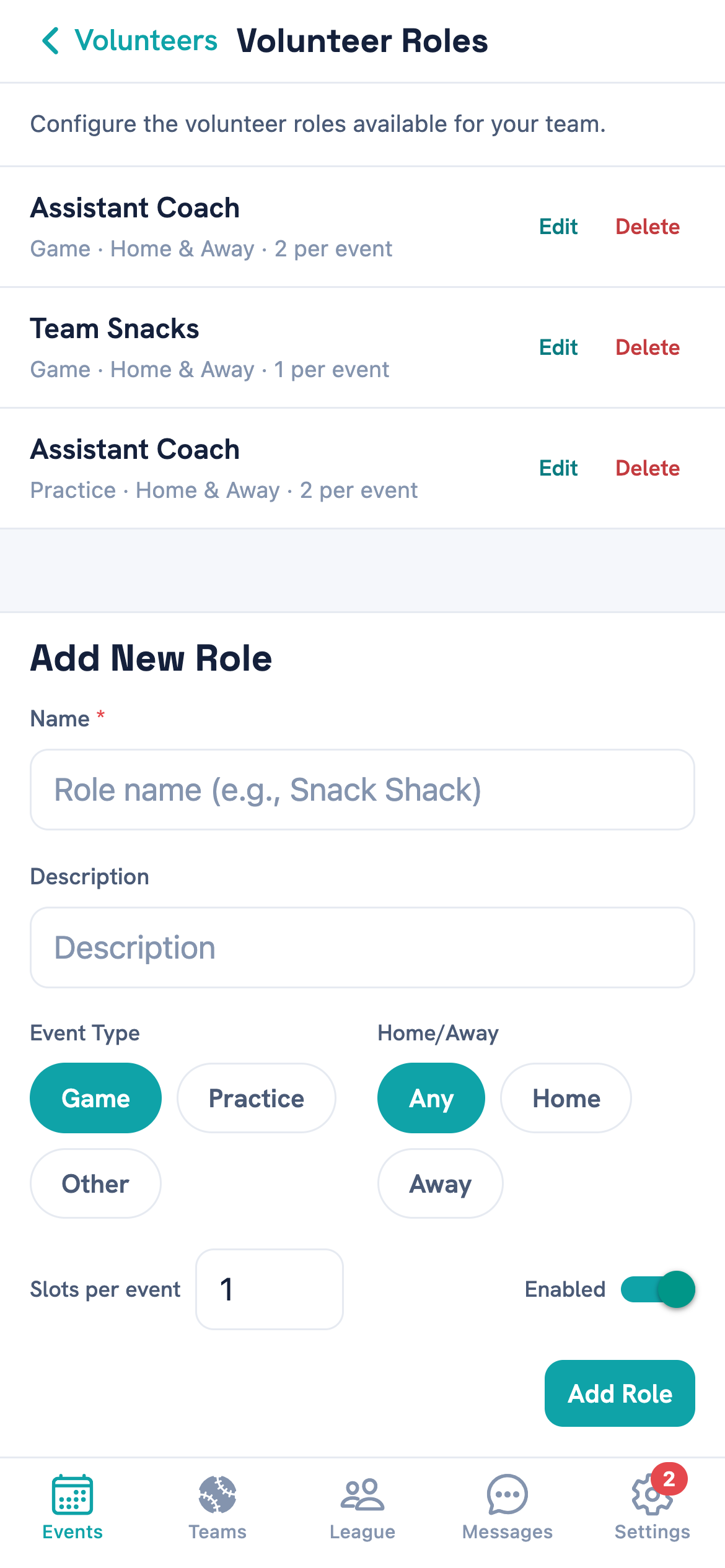
Existing roles summarise as Game · Home & Away · 2 per event, which is the line to check when something looks wrong. -
4
Choose when it applies
Pick Game, Practice or Other, then Any, Home or Away.Home is how you avoid asking for a Snack Shack volunteer at an away game you aren't hosting. -
5
Set how many you need
Slots per event is how many people to ask for each time. Two base coaches means two slots, and two parents can sign up. -
6
Tap Add Role
The role starts applying to games and practices created from now on.
When the slots actually appear
Slots are generated from your roles whenever a game or practice is created or its details change. That happens whether you added the event yourself or your league put it on your schedule — the roles are your team's, so they apply either way.
Because of that, a new role does not reach into the past. It applies to events created or edited after you add it, so an existing game keeps whatever slots it already had.
Turning a role off with the Enabled switch works the same way: it stops new slots being created, and leaves the ones already on your schedule alone.
How parents sign up
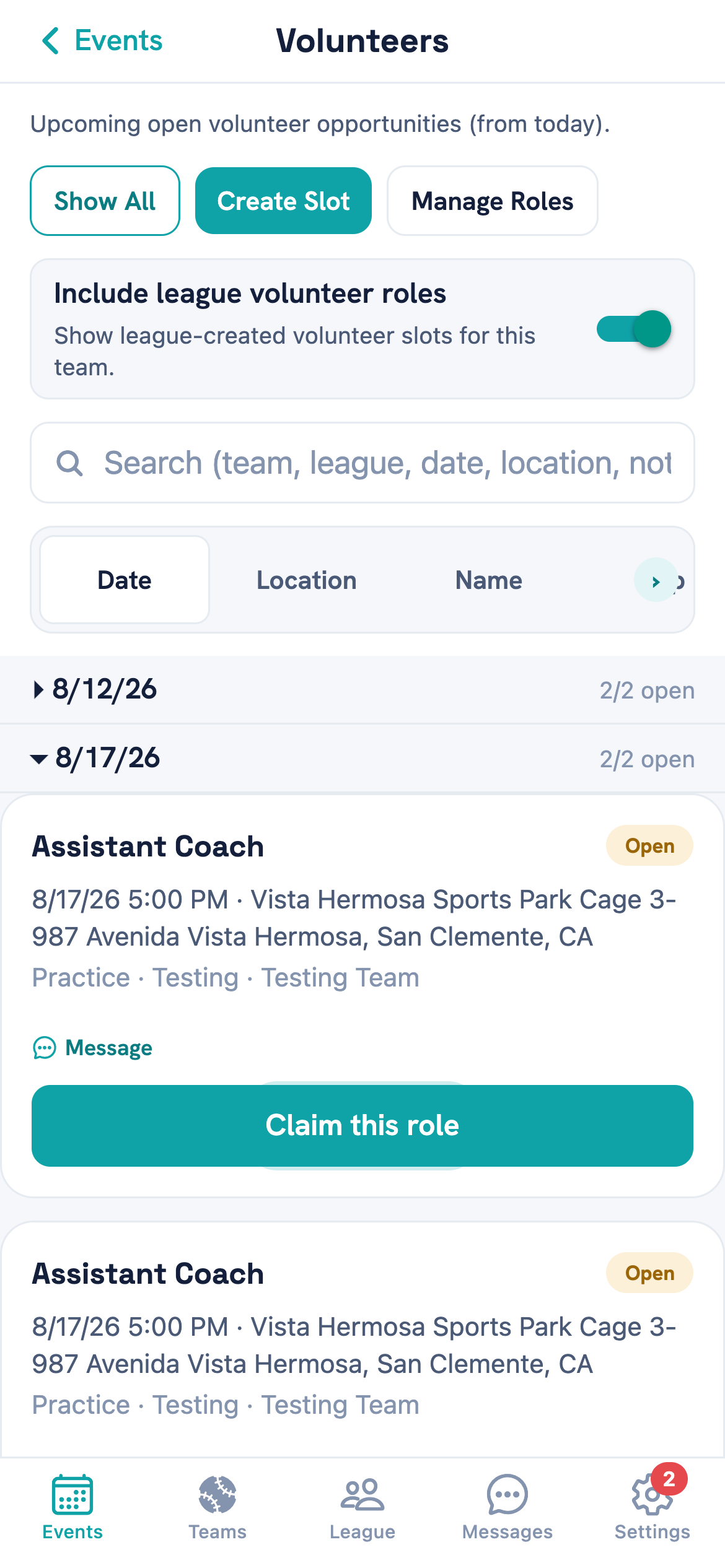
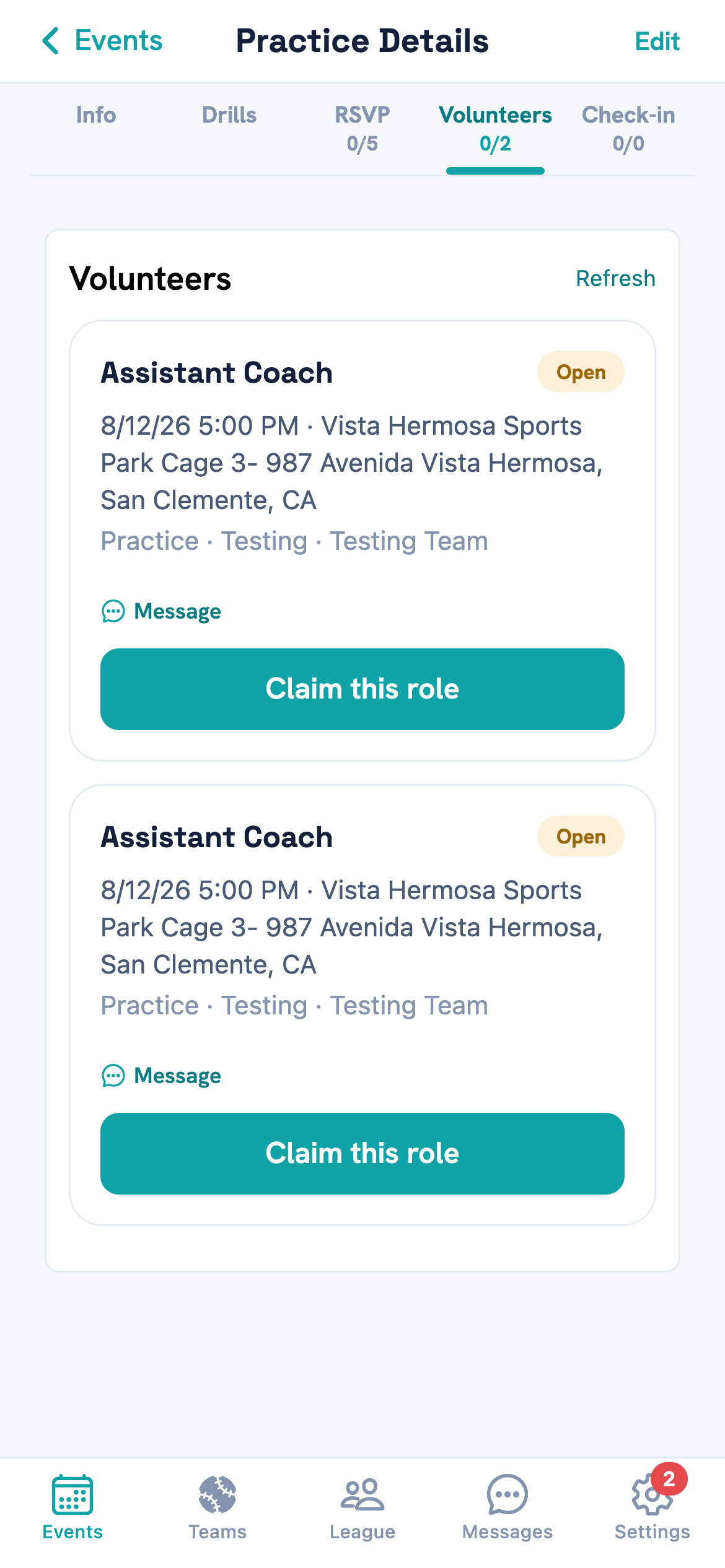
There are two ways in, and they lead to the same list. A parent can browse every open job across the schedule, or open one game or practice and see only that event's jobs.
Either way the button is Claim this role. A slot that's already taken shows who took it instead; to hand one back, open it and choose Make Open so it returns to the list for someone else.
Two ways to reach the jobs
Common questions
I can't find Manage Roles
I added a role but it isn't on my games
The same job is listed twice
Can I ask for more than one person for a job?
How do I stop asking for a role without losing the history?
Why is there a job on an away game?
Someone signed up and can't make it
Tell us what you were trying to do and where it went wrong, and we'll take a look.