
Add someone to your team
Invite a coach, parent or helper by email, and choose what they're allowed to do.
Jump to
Invite someone
-
1
Open the Members tab
Go to the Teams tab, pick your team, then Members. It lists who's on the team, and underneath, anyone still marked Invited (not joined yet).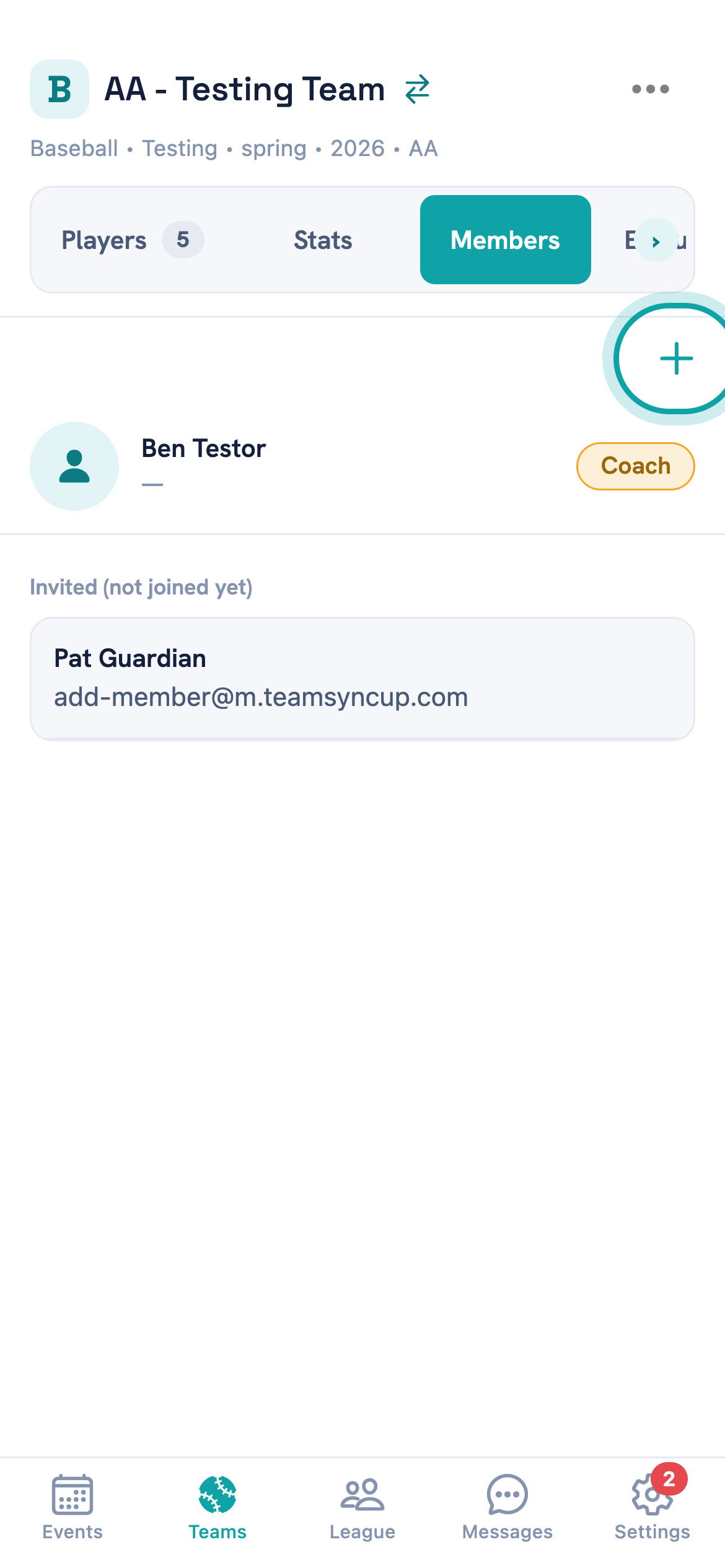
The add button is the + at the top right of the list. -
2
Tap the + button
That opens the Add Team Member form. -
3
Enter their email and name
Email is required — it's how the invite reaches them, and how the app recognises them if they already have an account.Use the address they'll actually check. An invite sent to the wrong address can't be redirected; you'd delete it and add them again.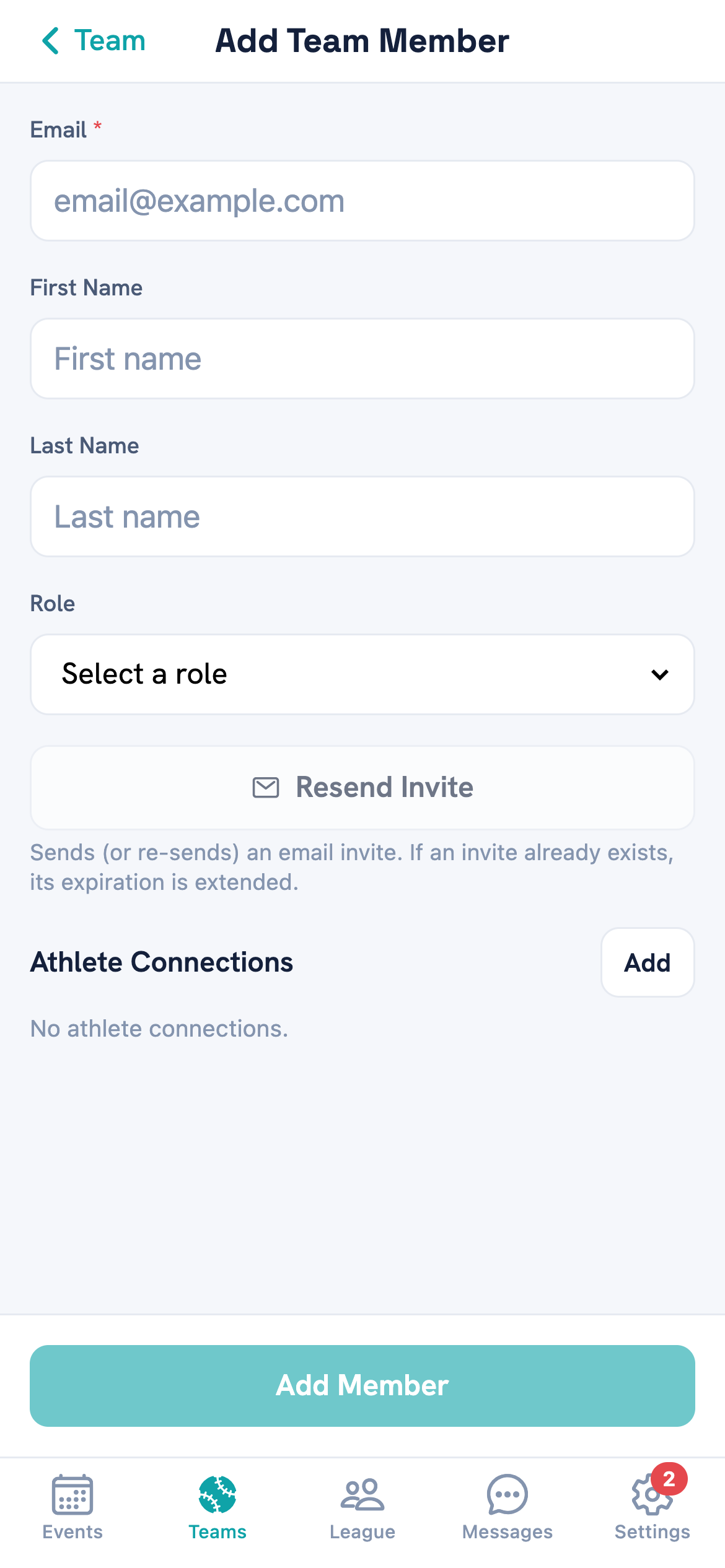
Role decides what they can do once they join. The table further down spells out each one. -
4
Pick a role
Choose from Coach, Team Admin, Team Parent, Parent, Player, Volunteer or Fan. You can change it later. -
5
Link a parent to their player
Under Athlete Connections tap Add, choose the player, then the relationship — Parent, Guardian, Relative, Fan / Supporter or Self.You can add more than one. A parent with two children on the team gets a connection for each, so both show up under their account.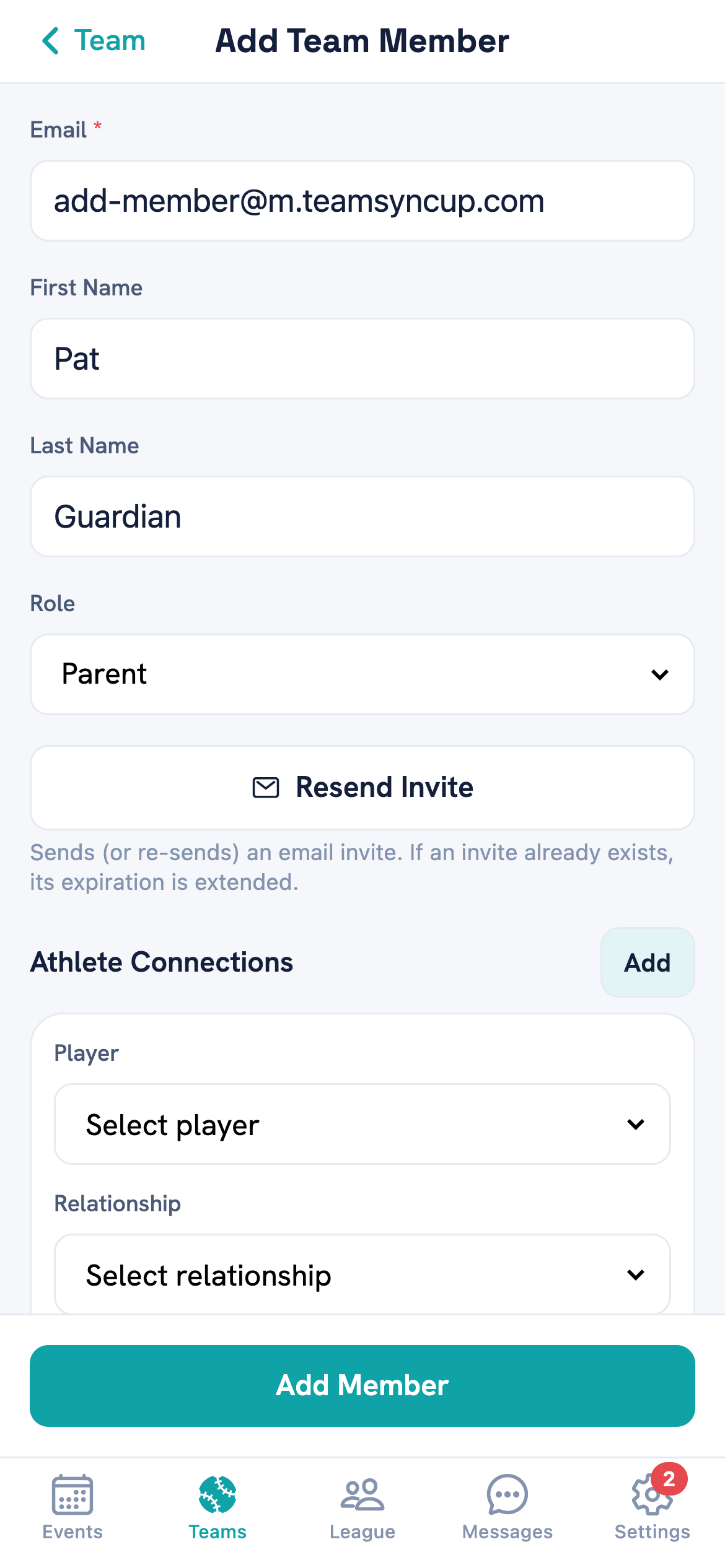
Pick Self when the person you're adding is the player. -
6
Tap Add Member
What happens next depends on whether they already have an account — see below.
What happens after you add someone
Two different things, depending on the email address.
If they already use Team Sync Up, they join immediately and appear in the members list. No email is sent — the team simply shows up next time they open the app, so it's worth telling them yourself.
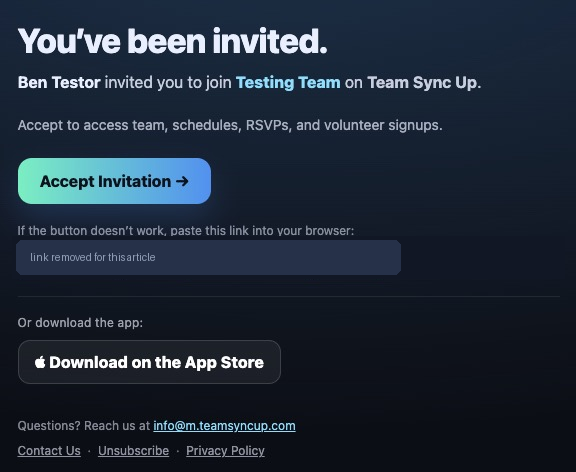
If the address is new, they don't join yet. They get an invite email, and they sit under Invited (not joined yet) until they accept. The invite lasts 14 days.
Tap someone in that list to Resend Invite, which also extends the expiry, or to remove them.
What each role can do
| Team Admin | Coach | Team Parent | Parent | Player | Volunteer | Fan | |
|---|---|---|---|---|---|---|---|
| See schedule and roster | Yes | Yes | Yes | Yes | Yes | Yes | Yes |
| See plays and messages | Yes | Yes | Yes | Yes | Yes | — | — |
| Add or edit games and practices | Yes | Yes | — | — | — | — | — |
| Add or edit players | Yes | Yes | — | — | — | — | — |
| Add or remove members | Yes | Yes | — | — | — | — | — |
| Score a game | Yes | Yes | Yes | — | — | Yes | — |
| Create volunteer slots | Yes | Yes | Yes | — | — | — | — |
| Claim a volunteer slot | Yes | Yes | Yes | Yes | — | — | — |
| Change RSVPs | Yes | Yes | Yes | — | — | — | — |
Which role to pick
Coach and Team Admin can run the team — schedule, roster, members and scoring. Give these out sparingly.
Team Parent is the helper role: score a game, organise volunteer slots, chase RSVPs, without being able to change the schedule or the roster.
Parent is for families. They see everything about the team and can claim a volunteer slot, but change nothing. Link them to their player so the app knows whose family they are.
Player is the same view without volunteer signups. Volunteer is for someone who only helps on game day — they can score, but they don't see plays or team messages. Fan is a grandparent: the schedule and the roster, nothing else.
Common questions
They say they never got the invite
I added someone but they're not in the list
How long does an invite last?
Can I change someone's role later?
Can one person be a parent to two players?
What's the difference between Parent and Team Parent?
Tell us what you were trying to do and where it went wrong, and we'll take a look.