
Claim a practice time for your team
Pick an open time from your league's schedule and it becomes a practice on your team's calendar.
Jump to
Claim an open time
-
1
Open the League tab, then Practices
Practices lives under your league season, not under your team.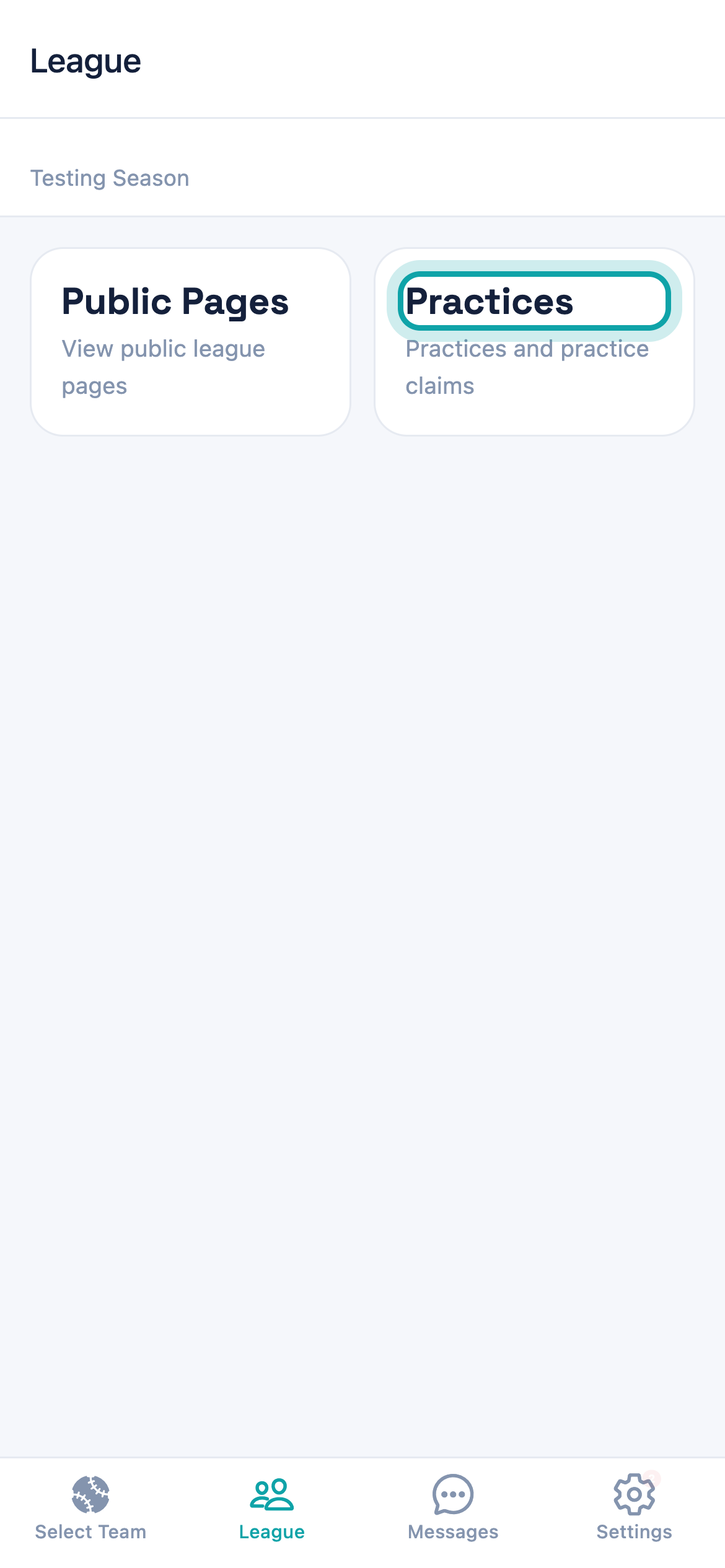
Practices — the card is subtitled "Practices and practice claims". -
2
Check what's been released
The screen is titled Practice Slots. Your league manager publishes the times that appear here — if it is empty, none have been released for that week yet. -
3
Narrow down to the times you want
Use Prev and Next to move between weeks, then pick a day. Filter by Divisions, Fields / Resources and Status. Status starts on Open, which is what you want — Full means another team already took it.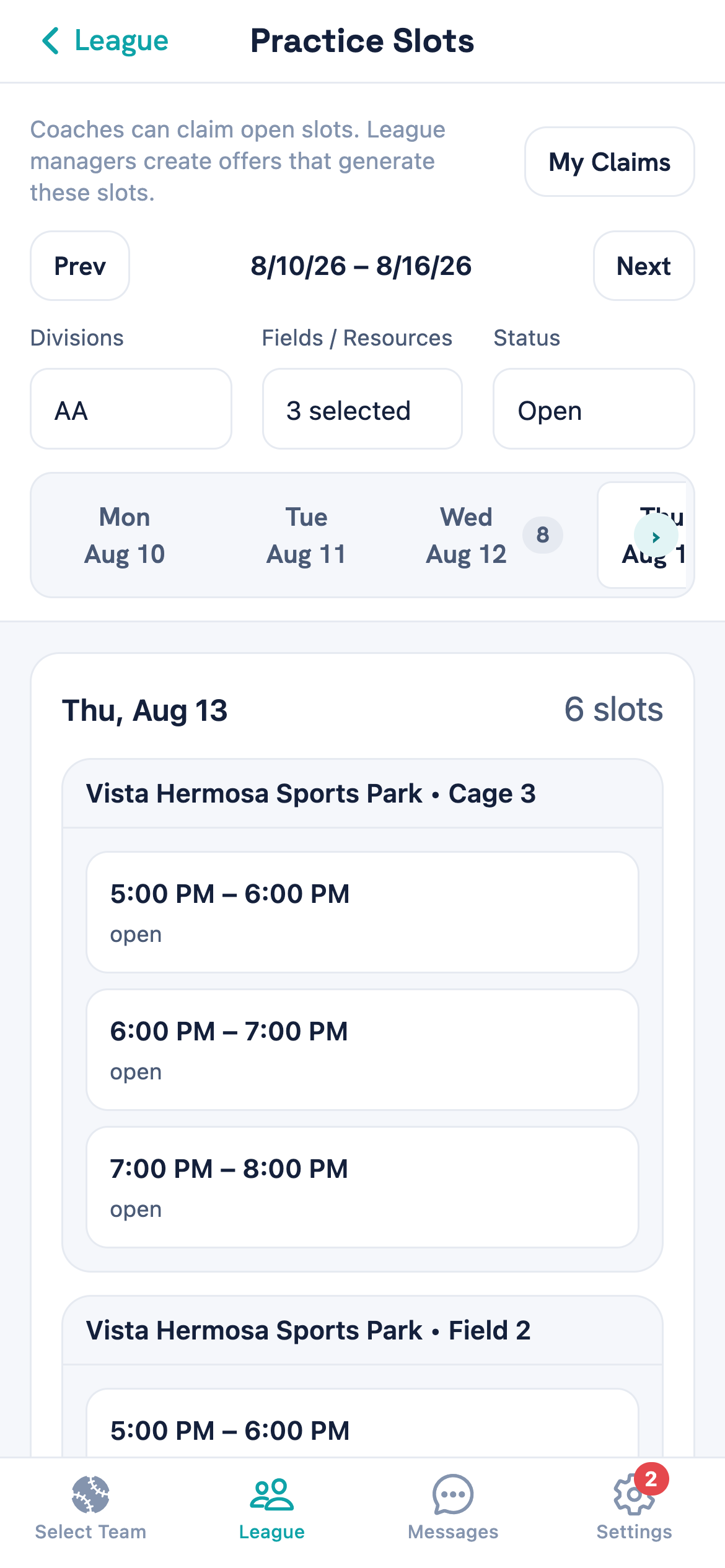
Times are grouped by field, and the number beside each day is how many are available that day. -
4
Tap the time you want
Tapping a time opens it for claiming. Only times marked open can be claimed. -
5
Check the team, then claim
Your team is already selected if you coach one team in the season; pick from Team if you coach more than one. Add a note for the league manager if you need to, then tap Claim.The note is optional and goes to your league manager. It also carries across onto the practice itself, so it's a reasonable place to put something like which cage you need.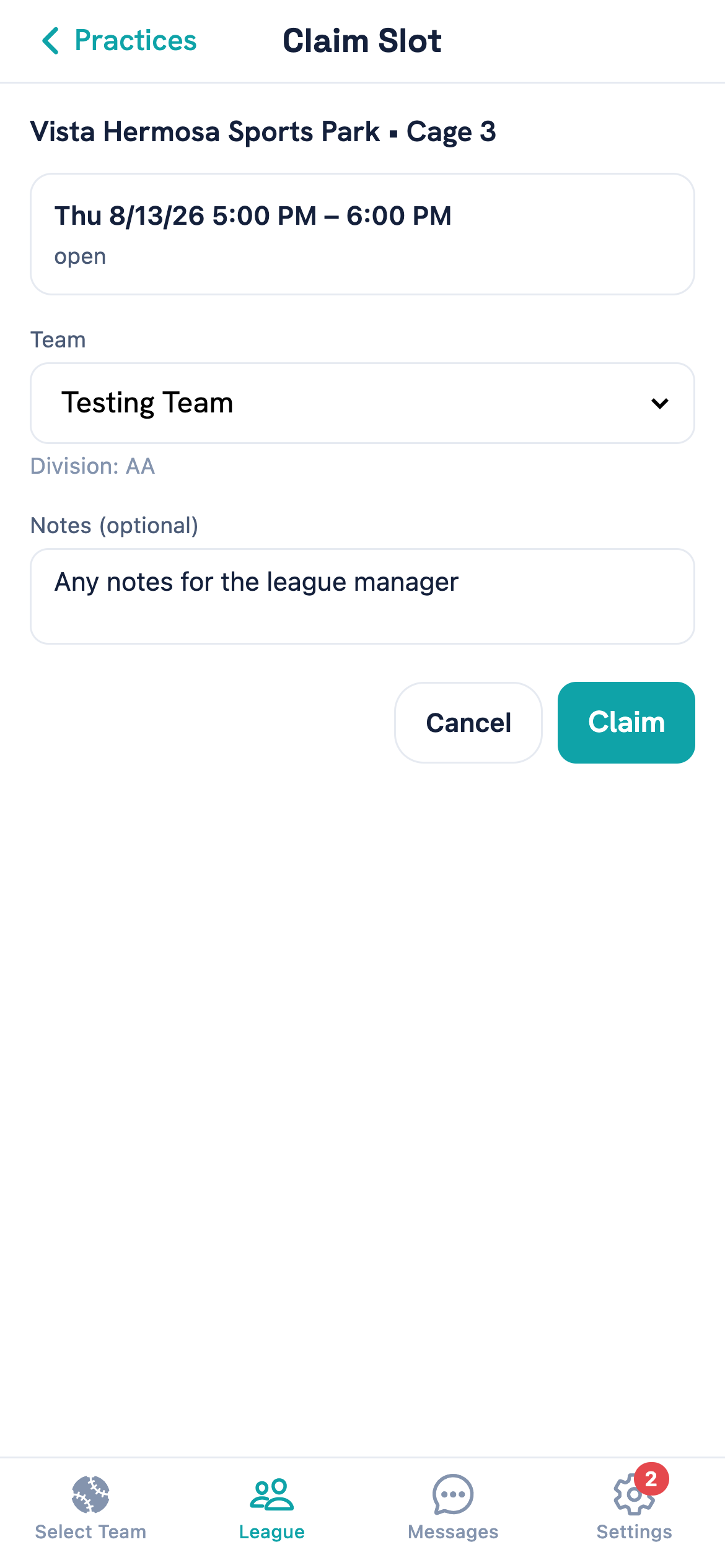
Claim is the last step — nothing is booked until you tap it.
What happens when you claim
The practice appears on your team straight away, with the date, time, length and field already filled in from the time you picked. You don't create it yourself, and you don't need to tell anyone — it's on your team's calendar and in the team's schedule feed the moment you claim.
The time then shows as Full to every other coach, so nobody can double-book the field.
Cancel a practice you claimed
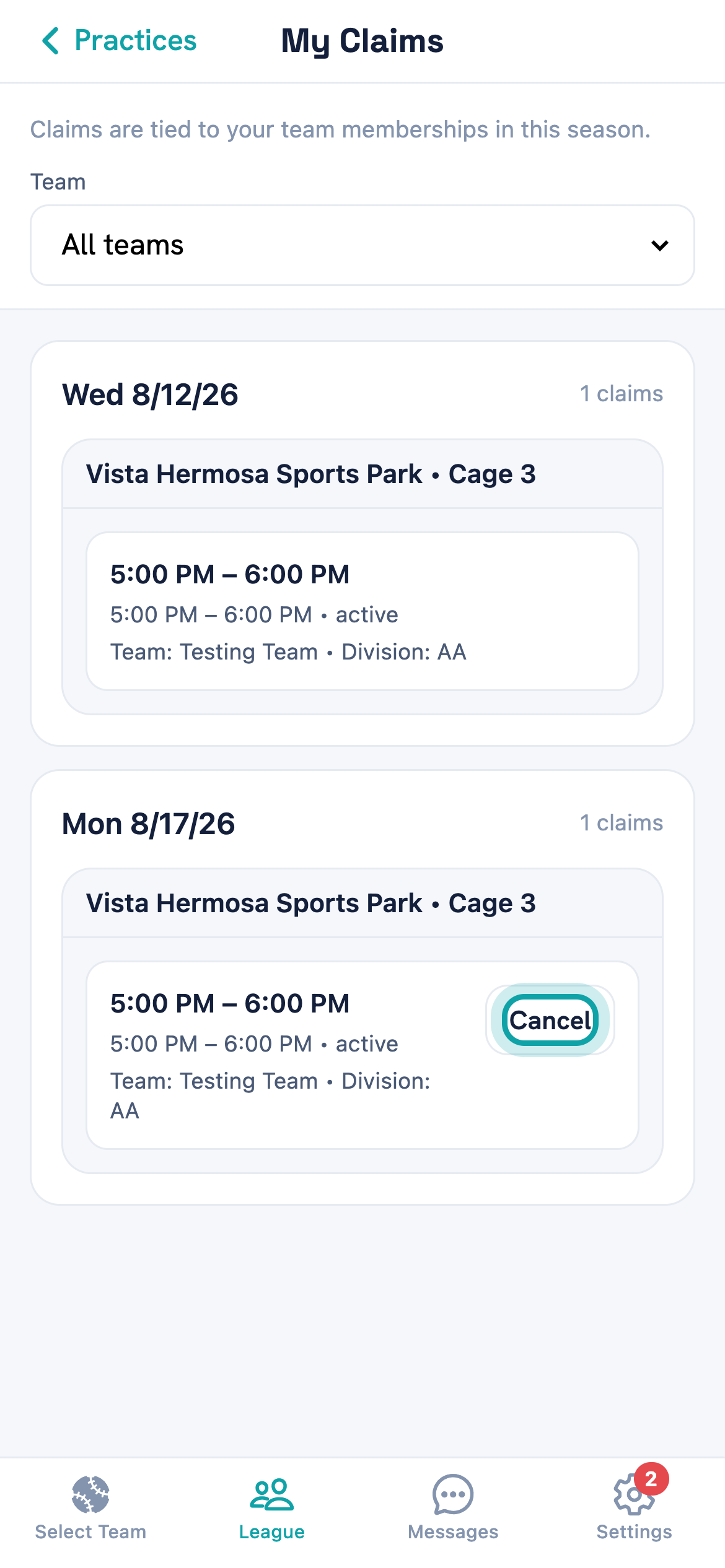
Cancelling gives the time back to the league so another team can take it, and removes the practice from your team's calendar. There are two ways in.
From Practice Slots, open My Claims, find the practice and tap Cancel. This is the reliable one.
From your team's events, open the practice, tap Cancel event, and turn on Cancel resource reservation before confirming. Leave that switch off and the practice disappears from your calendar while the field stays booked in your team's name — so nobody else can take it, and it still counts against your week.
Done properly, either way puts the time back to Open and frees up your week's limit.
Common questions
Why don't I see any practice times?
Someone took the time I wanted
It says booking limit reached
Do I need to add the practice to my team myself?
Can I claim for a team I don't coach?
There's no Cancel button on my claim
Tell us what you were trying to do and where it went wrong, and we'll take a look.