
How-to guide
Add your team schedule to your phone's calendar
Subscribe once and every game, practice, and time change shows up in the calendar you already check.
Updated Sep 15, 2026
4 min
7 steps
Jump to
Pick your team's calendar
-
1
Open Calendar Subscriptions
In Team Sync Up, go to Settings, then Calendar Subscriptions. You can do this in the app or at teamsyncup.com. -
2
Choose what to include
Pick All events, Games only, or Practices only. All events is the default and covers both.Choose before you tap Add to Calendar or Copy link. The choice is part of the link, so changing your mind later means adding the calendar again.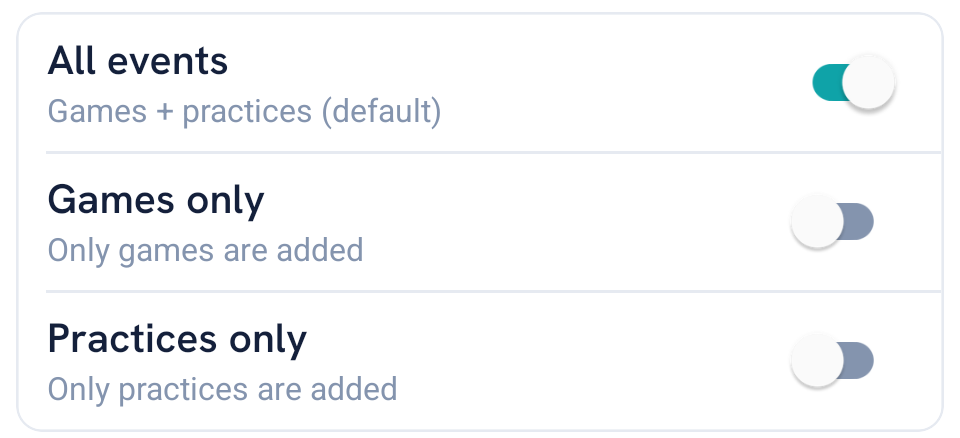
All events is on by default and brings practices along. Turn on Games only or Practices only to narrow it.
Add it to your calendar
On iPhone
-
1
Tap Add to Calendar
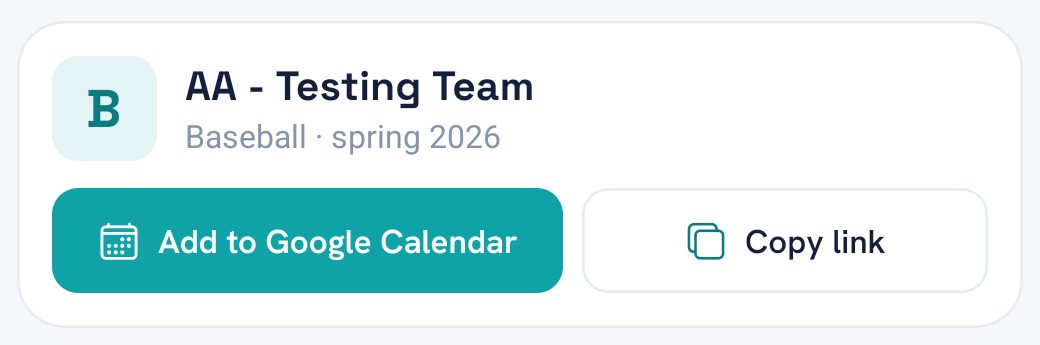
On your team's card, tap Add to Calendar. The Add Subscription Calendar pop-up opens with your team's link already filled in.Rather add it yourself? Tap Copy link instead, then in the Calendar app tap Calendars, choose Add Subscription Calendar, and paste the link.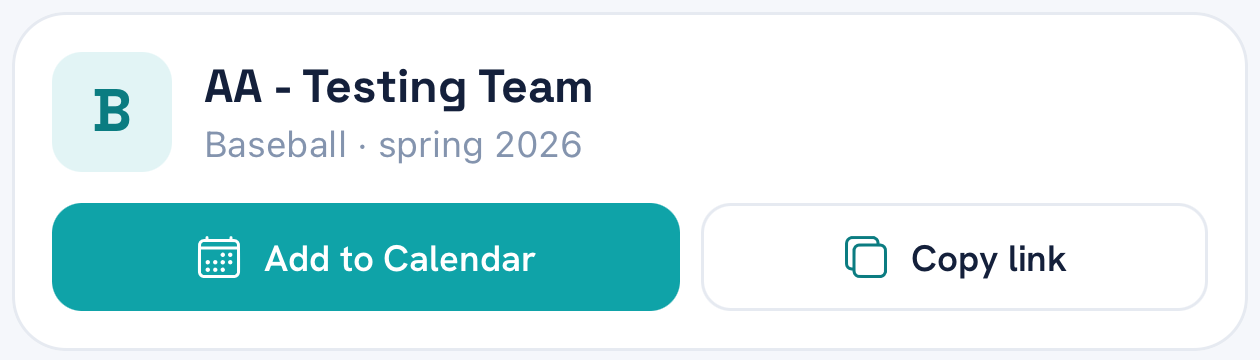
Add to Calendar is the teal button. Copy link beside it is for adding the link yourself. -
2
Tap Find
On the Add Subscription Calendar pop-up, tap Find.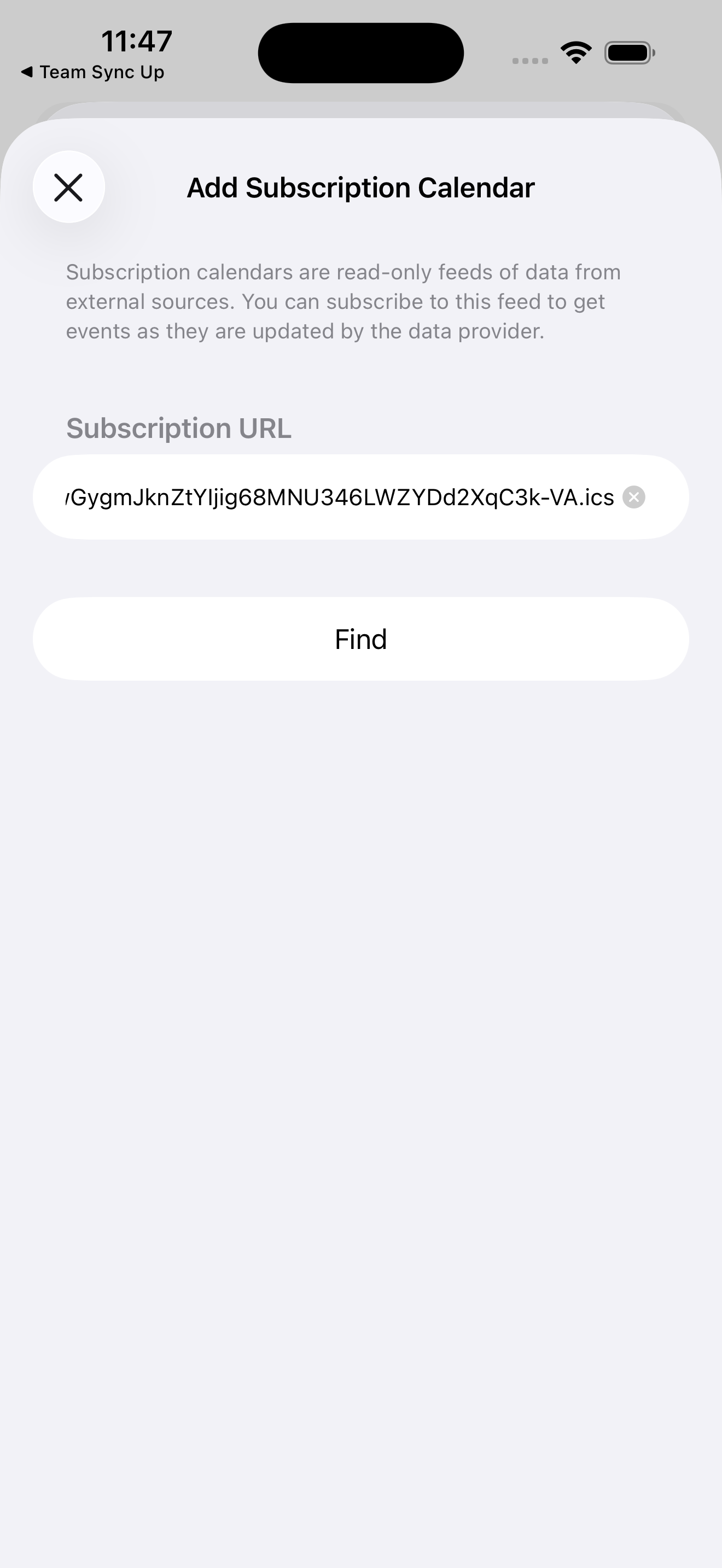
Your team's link is already in Subscription URL. Nothing is added until you finish on the next screen. -
3
Tap the checkmark
The next screen shows your team's name and upcoming events. Pick an account and colour if you want, then tap the checkmark.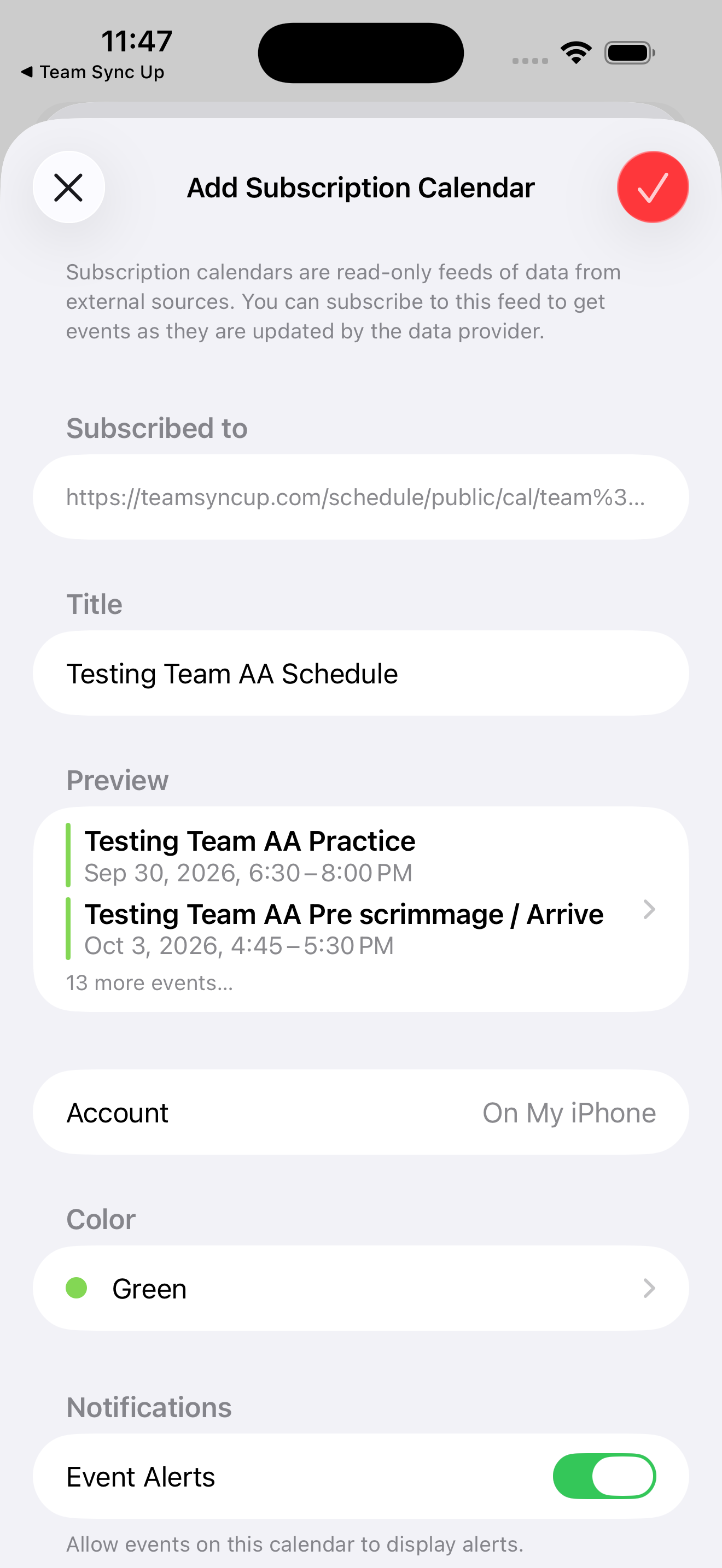
The title and a preview of your next events fill in on their own. If the preview is empty, the link didn't load — go back and try again.
Path
Calendar Subscriptions → Add to Calendar → Find → checkmark
What you'll see in your calendar
Events are named after your team, and the calendar arrives already titled with the team and division — you don't need to name it yourself.
If your coach sets an arrival time, each game adds a second entry called Pre game / Arrive that runs up to the start. Two entries for one game is expected, not a duplicate.
Cancelled and postponed events drop out of the feed rather than showing as cancelled. If a game disappears from your calendar, check the app before assuming something is broken.
Questions
Common questions
Why don't I see my team?
Calendar links only exist for teams you're on the roster for. Ask your coach to add you, and the team shows up in Calendar Subscriptions straight away.
Can I subscribe to more than one team?
Yes. Each team has its own calendar, so tap Add to Calendar or Copy link on each team you want.
Nothing happens when I tap Add to Calendar
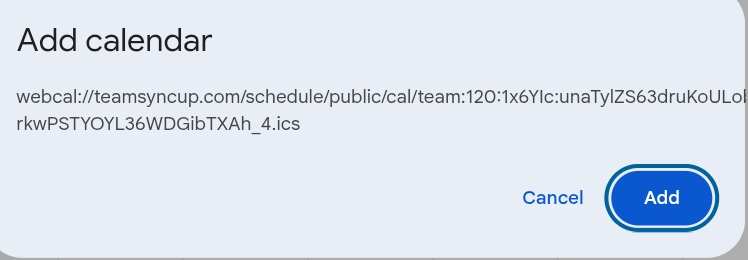
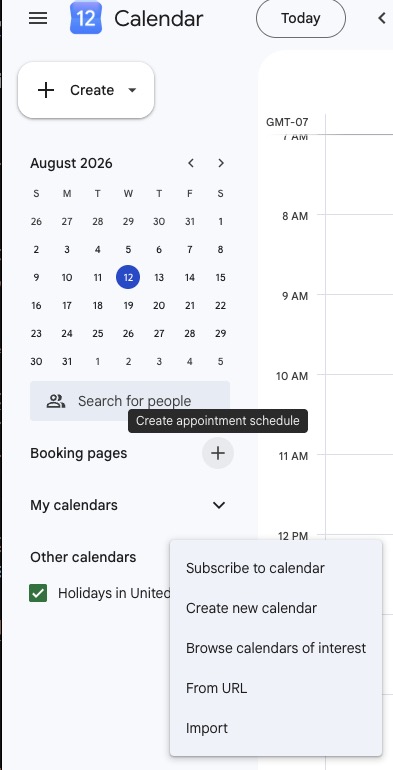
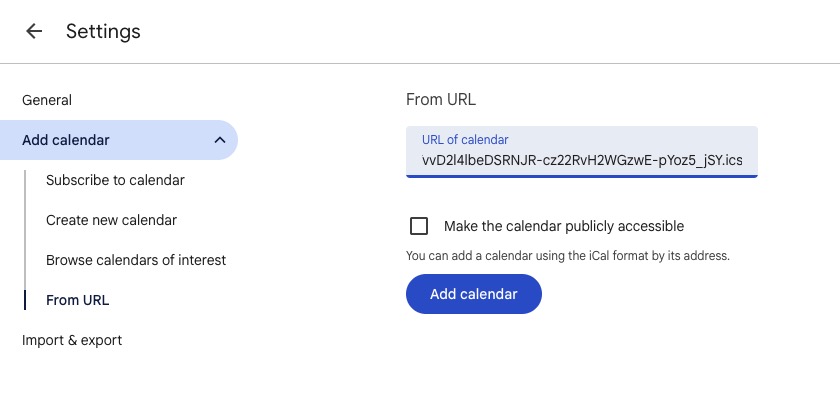
Tap Copy link instead and add the link yourself. The note under the first iPhone step covers the Calendar app, and the Google tab walks through Google Calendar.
My calendar hasn't updated in weeks
Subscribed calendars refresh on a schedule set by your phone or calendar provider, not by Team Sync Up. If it's been more than a day, remove the calendar and add it again from Calendar Subscriptions.
Is this the same as importing an .ics file?
No, and the difference matters. An import is a one-time copy that never changes. A subscription keeps updating, which is why a rained-out game moves on its own.
How long does the link keep working?
A calendar link works for a year. After that it stops updating, and you add the calendar again from Calendar Subscriptions.
How do I remove a calendar?
In the Calendar app, tap Calendars, then the information button beside the team's calendar, and delete it from there. In Google Calendar, hover the calendar under Other calendars and choose Unsubscribe.
Still stuck?
Tell us what you were trying to do and where it went wrong, and we'll take a look.